Best Tips & Tricks to Enhance Your Streaming on MovieBox?

MovieBox is trending and is one of the most popular online streaming platforms in 2026. The vast range of features, services, and content it has to offer is something that you may not find anywhere else. You can discover a diverse array of high-quality films and shows with subtitles in multiple languages without any need to sign up or purchase a subscription. This guide assists you in getting the most out of it by exploring all its useful features and utilizing them to make your life easier.
Well, there are no secrets or hidden features in this app. All its features are clearly stated and easy to access but most people focus on watching movies and they miss out on major parts of this app, which means they use this app at its least potential for too long. With this blog, you get to know some of the most practical functions that you can do within this app that will elevate your fun of watching videos on MovieBox. We round up 8 of the best MovieBox hacks that you must know, so let’s begin!
Best Tips & Tricks to Master MovieBox
Enjoy seamless online or offline viewing with the app that’s fast, user-friendly, and frequently updated. Best of all, watch everything from classic films to the latest hits at no cost. MovieBox truly offers something for everyone to watch. Using the useful tips given below, you can extract the most fun out of this amazing platform so understand them and try them out.

Manually Change Video Quality
While streaming your beloved movie on the Moviebox app, you can switch video quality from anywhere between 360p and 1080p or even higher. Tap on the Quality option inside the media player and you will have various video quality options to choose from and this enables users to set the video quality to what you prefer based on your current internet speed limit and data availability.

Use MovieBox Web on incompatible devices
The official MovieBox app is compatible with most devices, such as Android phones, smart TVs, and Firesticks. Although you can install the MovieBox app on Windows or macOS devices as well, you will require an Android emulator that consumes around 5-7 GB of storage space, and this app does not work on iPhone or iPad devices. So in this case, you can prefer using the MovieBox web portal that provides the same user experience and features that you can get from the mobile app of MovieBox. The web portal has the same feature as the MovieBox app. It does not require any registration or subscription. The website’s content is regularly updated as well.
Change Source If Video Buffers
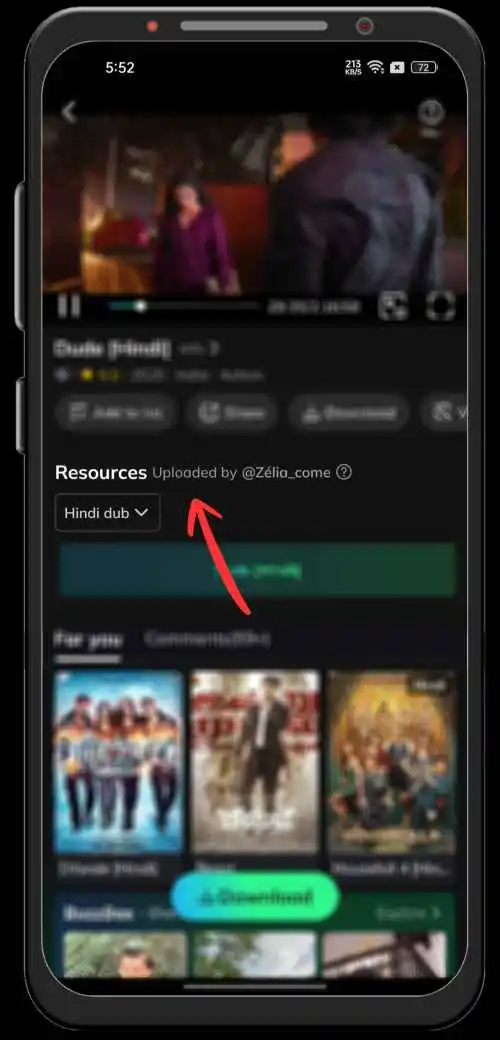
While watching a movie if the video buffers over and over again, making you unable to watch it, then you have an option to change the source of the video that will basically play the same movie hosted on other server. To do that, firstly you may need to open the video, then in the lower right side of your mobile screen tap the language option and change the audio language into your preferred one. The source of the video will automatically change and most likely fix the buffering problem.
Report Issues
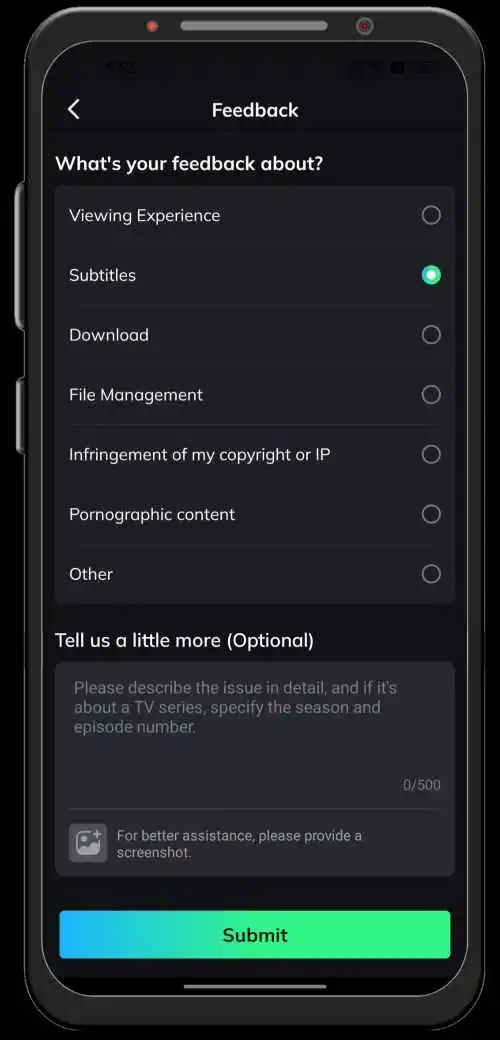
If you face any problem while streaming or downloading videos from MovieBox, such as constant buffering or showing an error code while trying to play the video, you can send the complaint to the app development team. Whenever you stream a video, there is a Help button icon on the top right corner of the screen on which you can tap to open a popup window where you can select your feedback/issues, such as viewing experience, subtitles, adult content, download, infringement, and others. You can also describe your issues in more detail, specifying the particular series, season, and episode number. For proof, you can also give a screenshot of the issue that you are facing or provide your contact number so that the customer support team can get back to you once the issue is fixed.
Unlock More Content
Each country has a different content library within and that happens because of the censor board of a country restricts several films that violate their laws. You may not be able to explore many great movies and shows because that certain video is not released in your country or possibly banned in your region So, if you connect to a VPN server from a foreign country—suppose you connect to a VPN server from the United States, Canada, Japan, or anywhere else—MovieBox shows you the content available in that particular country only, bypassing your geographical restrictions. Because of this, it will load the content library automatically from that location, which usually has more variety of movies and exclusive series.
A VPN unlocks more movies, TV shows and other content by modifying your IP address. When you connect to a VPN server from a different country other than your country, your traffic will be routed through that particular country. Instead of your real IP address, MovieBox detects the server’s IP address.

Customize Subtitles
Subtitle is not a luxurious feature; it is a necessity when it comes to searching for a good streaming or OTT platform. With the Moviebox app, you can watch foreign language movies & TV shows with subtitles in your regional language. It is very helpful for making you understand the context of the movies if you do not understand the audio track of the video. You can enable or disable subtitles with one touch on this app, and it also provides various settings to customize the appearance of the subtitles, such as changing font color, font size, position, shadow, and text background.
Use Offline Playback Feature
No internet connection? No worries. Moviebox has an offline mode. All you have to do is to make sure you select the ‘Watch Options’ from the settings and set it to ‘Download.’ Once done, you will have the download option visible on all the videos available on the MovieBox app. Whenever you have a good internet connection, you can download the movies you have saved in your watch list and then you can watch them later while being offline. This feature is great for flights, travels, or any areas where internet connection is slow. You can enjoy the downloaded content offline later without having to worry about internet access.
Use Family Mode
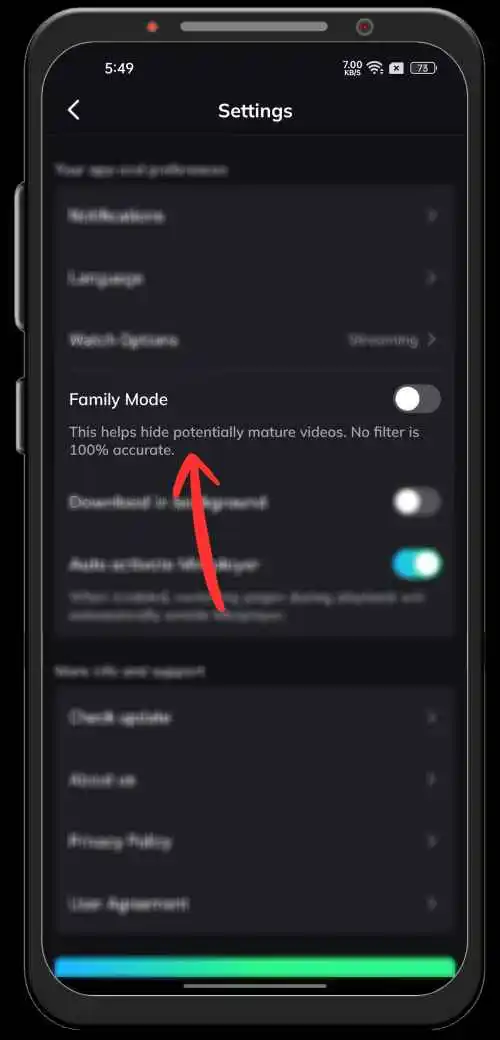
There is a separate Buzz Box section at the bottom center of this app that provides much adult and R-rated content, which is not suitable for kids. By default, it keeps viewers exposed to a lot of inappropriate and juicy content that could be annoying for a lot of people who don’t prefer such content. However, there is a ‘Family Mode’ option that you can find in its settings menu and turning it on will remove the Buzz Box and all the unfriendly content from the app, making it a neat & clean streaming platform.
Conclusion
MovieBox is the best choice for many entertainment lovers who seek free streaming of movies, TV shows, anime, drama, and sports. You can stream your newly released movies and TV shows in HD and 4K quality. It provides quick access to Bollywood, Hollywood, K-dramas, and live sports highlights without any ads. It allows you to customize subtitles as per your needs. You don’t need to pay any amount or worry about internet connection to use the app. Mentioned above are some of the useful tips that boost your experience with this app, as they help you to use its features efficiently.