How to Transfer Movies From MovieBox to Laptop?

All the videos you have downloaded from MovieBox must be consuming a lot of storage space, but if you don’t want to delete all the hidden gem-like content you have extracted from the internet, then a great idea is to move all of them to your PC or laptop, as they have more storage space than phones. This guide teaches you the entire process to transfer your movies from MovieBox to Laptop instantly.
How to Locate Downloaded MovieBox Videos?
As you know, there are two watching options with MovieBox that are Stream and Download. The app gives users the ability to download full HD videos for free. The videos you have downloaded can be accessed from the app in the Download section, and you can also find the downloaded videos in your device’s default gallery app. With MovieBox, users can change the downloading path, but by default, all the videos are saved in the Download folder in your device’s internal storage.
Easy Steps to Transfer Movies From MovieBox to Laptop
The best and most efficient way to transfer movies from MovieBox to a laptop is through a USB cable so mentioned below is the detailed instructions to copy or move all your downloaded videos from MovieBox to your PC so that you can access them on your laptop anytime, even if you deleted the videos from your phone.
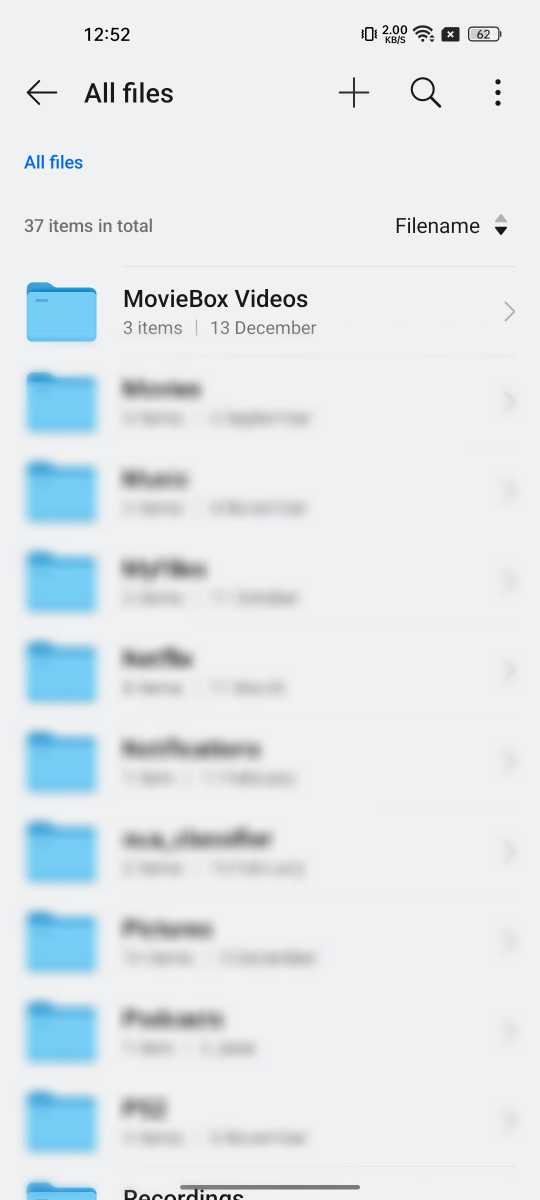
Step 1. Arrange All Videos in a Folder: The movies and TV shows you have downloaded from the MovieBox app are usually stored in the download folder on your device’s internal storage, where all other downloaded files are also saved. Organize all the downloaded videos and place them in a new folder.
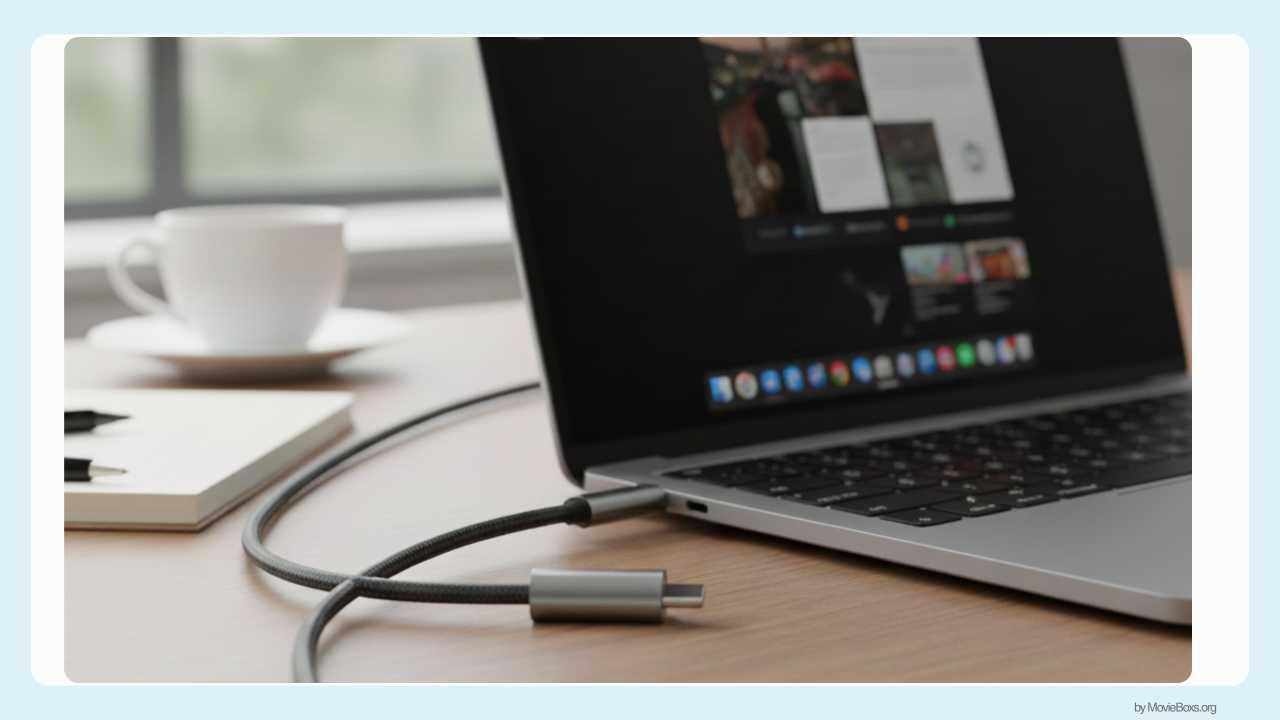
Step 2. Connect your phone to a USB Cable: Use the USB or Type-C charger cable of your phone and connect one part to your phone and another part to your computer.
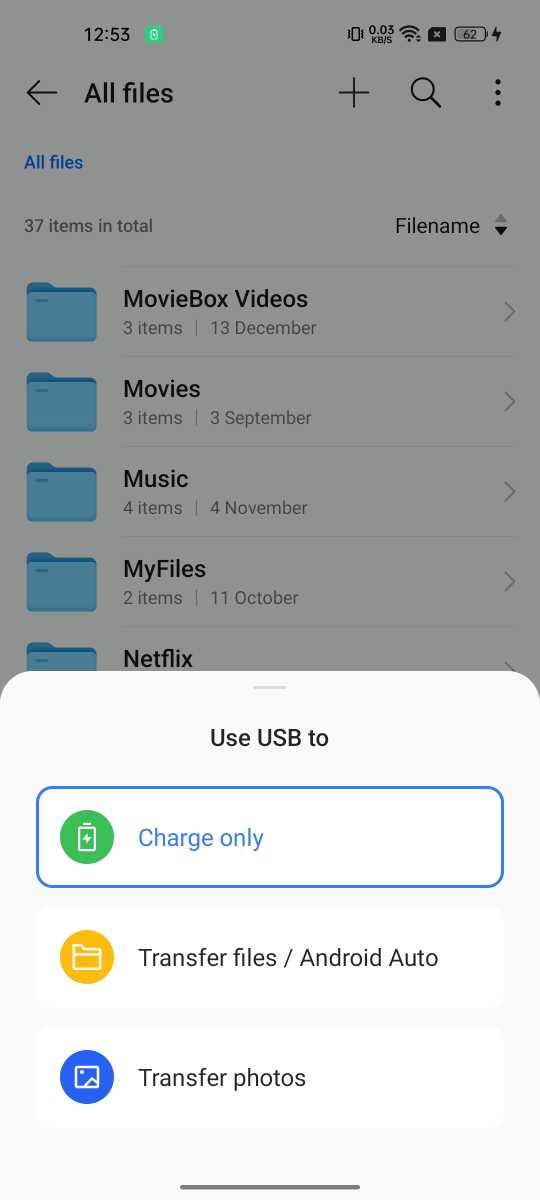
Step 3. Set up Transfer Files: When you connect the USB cable to your phone and PC, unlock your smartphone, and a message will pop up on the screen asking if you want to charge your phone or transfer files, so select the transfer files option.
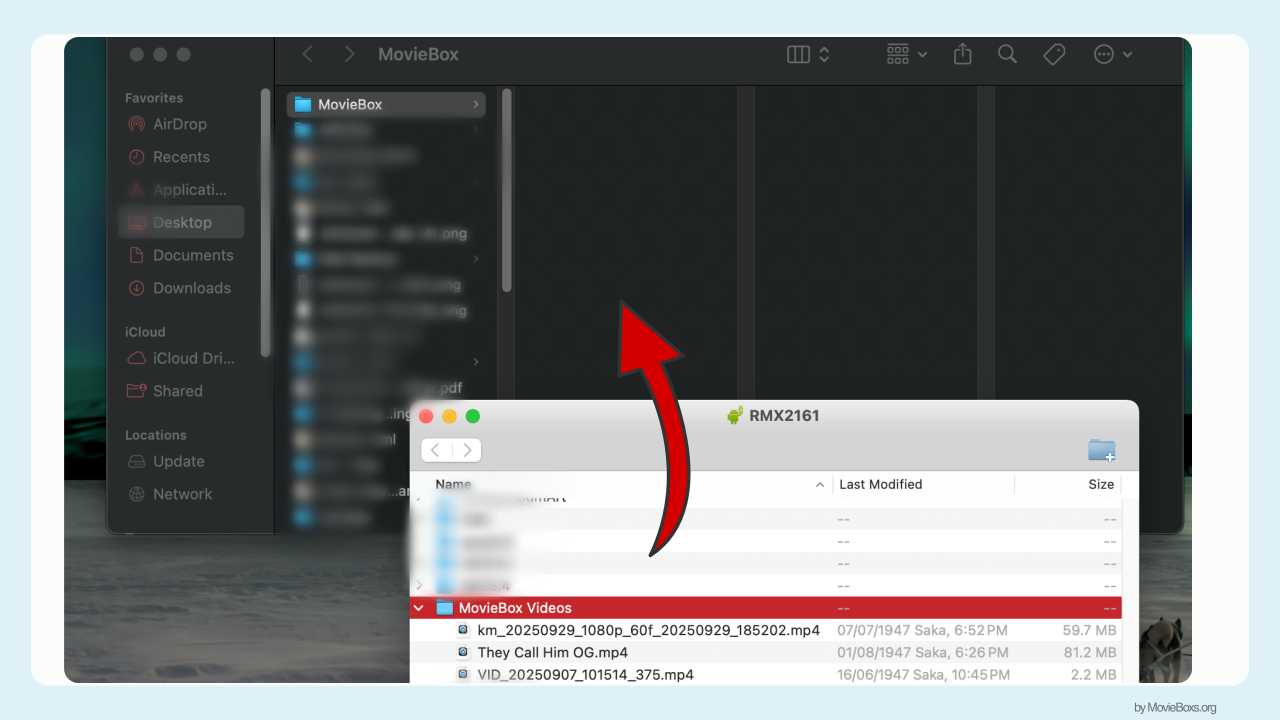
Step 4. Copy or Move Folder: Once successfully connected, open the Files on your PC and select your phone name to open all the folders and files from your phone’s storage directly on your PC. Go to the folder where you have saved all the MovieBox videos and copy or move them to your computer’s desktop screen.
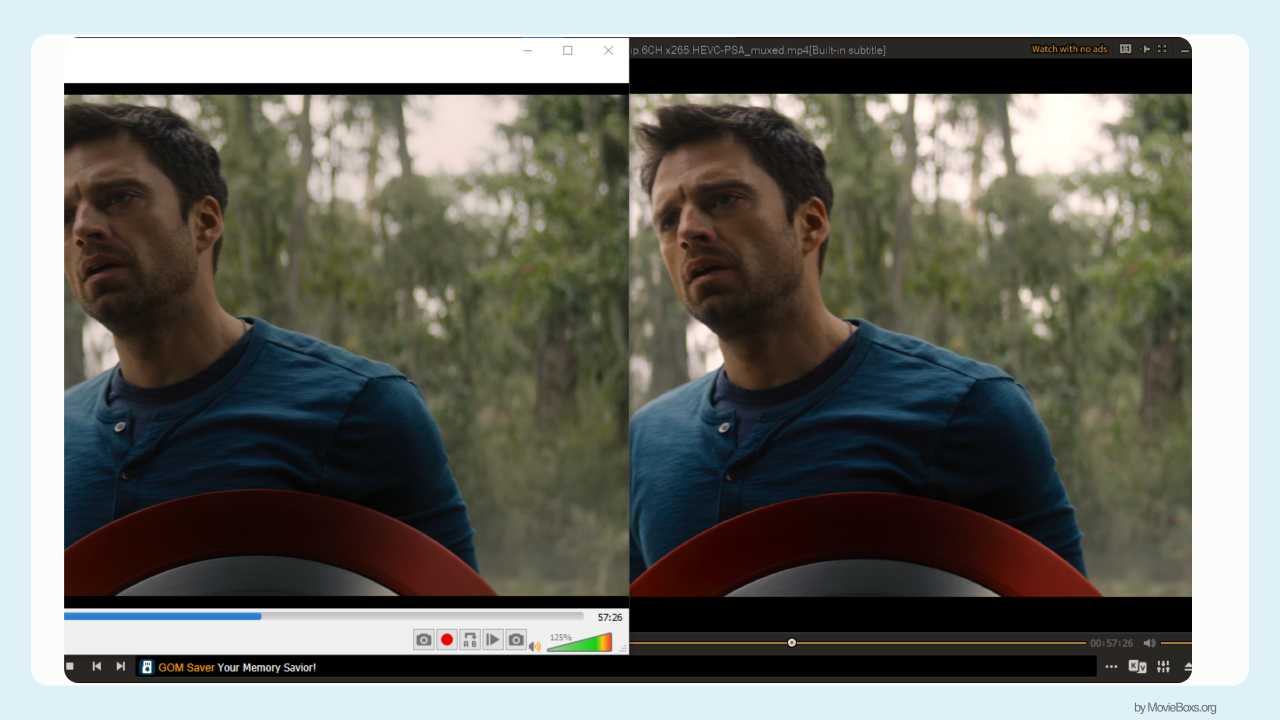
Step 5. Remove USB and Test If Video Plays Well: Wait patiently while the copying and moving process is going on, then remove the USB cable and try to play the videos on your PC to check if they play well without any errors. That’s it!
FAQs
Conclusion
Once all the videos from your phone have been transferred to your PC or laptop, you can delete these videos from your phone and get free storage space, as you can access the MovieBox videos on your PC anytime.